Traefik Proxy
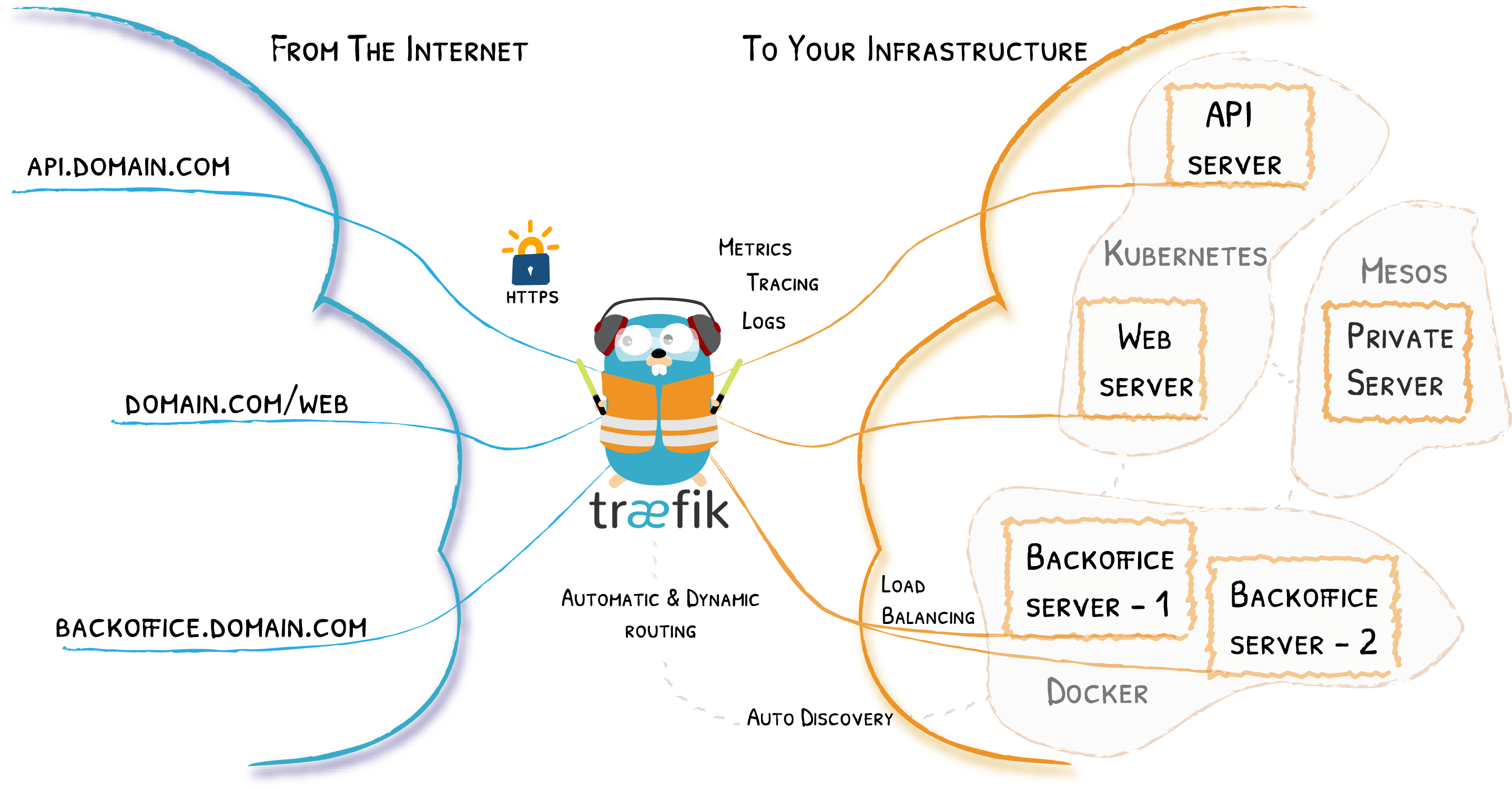
Trafik เป็น Open-source Proxy Load Balancer ที่ช่วยให้การทำ reverse proxy หรือการทำ load balance นั้นสะดวกและง่ายดายยิ่งขึ้น ช่วยจัดการ request ต่าง ๆ ภายในระบบให้กลายเป็นเรื่องที่ง่ายกว่าเดิม
Install Traefik
ในการติดตั้ง Traefik นั้นเราสามารถใช้ Docker Compose ช่วยติดตั้งได้ง่าย ๆ โดยทำการสร้างไฟล์ docker-compose.yml ดังนี้
version: '3.3'

services:
  traefik:
    image: 'traefik:latest'
    container_name: 'traefik'
    restart: always
    networks:
      - frontend
    ports:
      - '80:80'
      - '443:443'
      - '8080:8080' # Don't do this in production!
    volumes:
      - /etc/traefik:/etc/traefik
      - /var/run/docker.sock:/var/run/docker.sock:ro

networks:
  frontend:
external: trueโดย Traefik จะมีขาเข้า 2 ช่องทางคือ :80 และ :443 ส่วน :8080 จะเป็นการเปิดใช้งาน dashboard ซึ่งแนะนำให้ปิดไว้หากไม่มีความจำเป็น เนื่องจากเป็นการเปิดใช้งาน API ของ Traefik ซึ่งอาจทำให้เกิดปัญหาความปลอดภัยได้
Note
⚠️ อย่าลืมสร้าง network สำหรับจัดการ traffic ที่จะให้เข้ามาในแอพที่เป็น container เช่นในตัวอย่างใช้ network ชื่อ
frontendซึ่งเราสามารถสร้างได้ด้วยคำสั่งdocker network create frontend
จากนั้นสร้างไฟล์ที่ /etc/traefik/traefik.yml ดังนี้
global:
  checkNewVersion: true
  sendAnonymousUsage: false # true by default

log:
  level: ERROR # DEBUG, INFO, WARNING, ERROR, CRITICAL
  format: common # common, json, logfmt
  filePath: /var/log/traefik/traefik.log

accesslog:
format: common # common, json, logfmt
filePath: /var/log/traefik/access.log

api:
  dashboard: true
  insecure: true # Don't do this in production!

entryPoints:
  web:
    address: :80
  websecure:
    address: :443

providers:
  docker:
    exposedByDefault: false # Default is true
    network: frontend # Docker network
  file:
    directory: /etc/traefik
watch: trueหลังจากนั้นให้รันคำสั่ง docker-compose up -d แล้วเข้าไปที่ http://localhost:8080 จะเห็น dashboard ของ Traefik แล้ว
Application Configuration
สำหรับการตั้งค่าให้ container ของเราสามารถใช้งาน Traefik ได้ นั้นเราสามารถใช้ label ของ Docker ในการกำหนดค่าได้ โดยในตัวอย่างนี้เราจะใช้ label ต่าง ๆ ดังนี้
Note
ในตัวอย่างนี้เราใช้ label ของ Docker Compose ซึ่งจะแปลงเป็น label ของ Docker ให้อัตโนมัติ ซึ่งสามารถดูได้จาก Docker Compose File Reference
labels:
  - 'traefik.enable=true'
  - 'traefik.http.routers.${APP_NAME}.entrypoints=web'
  - 'traefik.http.routers.${APP_NAME}.rule=Host(`${HOST_URL}`) && PathPrefix(`/${APP_NAME}`)'
  - 'traefik.http.routers.${APP_NAME}.middlewares=${APP_NAME}-stripprefix'
  - 'traefik.http.middlewares.${APP_NAME}-stripprefix.stripprefix.prefixes=/${APP_NAME}'
- 'traefik.http.services.${APP_NAME}.loadbalancer.server.port=80'ซึ่ง Traefik จะอ่าน label เหล่านี้แล้วทำการกำหนด config ต่าง ๆ ให้โดยอัตโนมัติ
TLS Configuration
สำหรับการทำให้ Traefik resolve TLS ให้ สิ่งที่ต้องเตรียมคือ SSL Certificate ซึ่งจะประกอบไปด้วย 2 ส่วนคือ Certificate (.pem) และ Private Key (.key)
ให้ copy SSL Certificate และ Private Key ไปไว้ใน directory /etc/traefik/certs
จากนั้นให้แก้ไขไฟล์ /etc/traefik/traefik.yml เพื่อกำหนดให้ redirect ไป HTTPS ดังนี้
entryPoints:
  web:
    address: :80
    http:
      redirections:
        entryPoint:
          to: websecure
          scheme: https
  websecure:
address: :443จากนั้นให้แก้ไขไฟล์ /etc/traefik/traefik.yml เพื่อกำหนดให้ใช้ SSL Certificate และ Private Key ดังนี้
tls:
  stores:
    default:
      defaultCertificate:
        certFile: /etc/traefik/certs/cert.pem
keyFile: /etc/traefik/certs/cert.keyซึ่งชื่อของ Certificate และ Private Key จะต้องเป็นชื่อเดียวกัน ที่อยู่บนเครื่อง server ด้วย จากนั้นให้ทำการแก้ไขไฟล์ docker-compose.yml ของ traefik ด้วยการ mount volume ของ SSL Certificate และ Private Key ดังนี้
volumes:
  - /etc/traefik/traefik.yml:/etc/traefik/traefik.yml
- /etc/traefik/certs:/etc/traefik/certsรันคำสั่ง docker-compose up -d อีกครั้ง จากนั้นให้ลองตรวจสอบ Application ที่เราตั้งค่าให้ Traefik ว่าสามารถเข้าได้ผ่าน HTTPS ได้แล้วหรือไม่